Step 1: Export Data from LodgeiT
From your LodgeiT dashboard:
1. Open your client list.
2. Click the three dots menu
3. Select:
- Export Client to CSV → Generates the Clients CSV file
- Export Relationships to CSV → Generates the Relationships CSV file
Related guide: Client Export
Step 2: Understand LodgeiT Export Fields
In your Clients CSV export file, note:
- Email field: Identifies the human client (individual contact).
Located in column J (First Name); K (Middle Name); L (Last Name); S (Email)
- Primary Email field: identifies the primary contact for Companies, Trusts, and Partnerships.
Located in column AO (Primary Email Contact) and column AP (Primary Email)
Cleint Relay mapping rule
- Email field: Used to create an Client RelayContact.
- Primary Email field: Used to assign relevant signatories for non-human CLIENT (companies, trusts, partnerships, SMSFs).
Step 3 – Understand Relationships
From the Relationships CSV file, Client Relay automatically reads and applies the following roles:
- Director
- Partner
- Trustee (For corporate trustees, Client Relay will also link the directors of the trustee company).
These relationships allow Client Relay to setup relevant Contacts to act as signatories on the given non human Client records for trusts, SMSFs, companies & partnerships.
Step 4 – Import Data into Client Relay
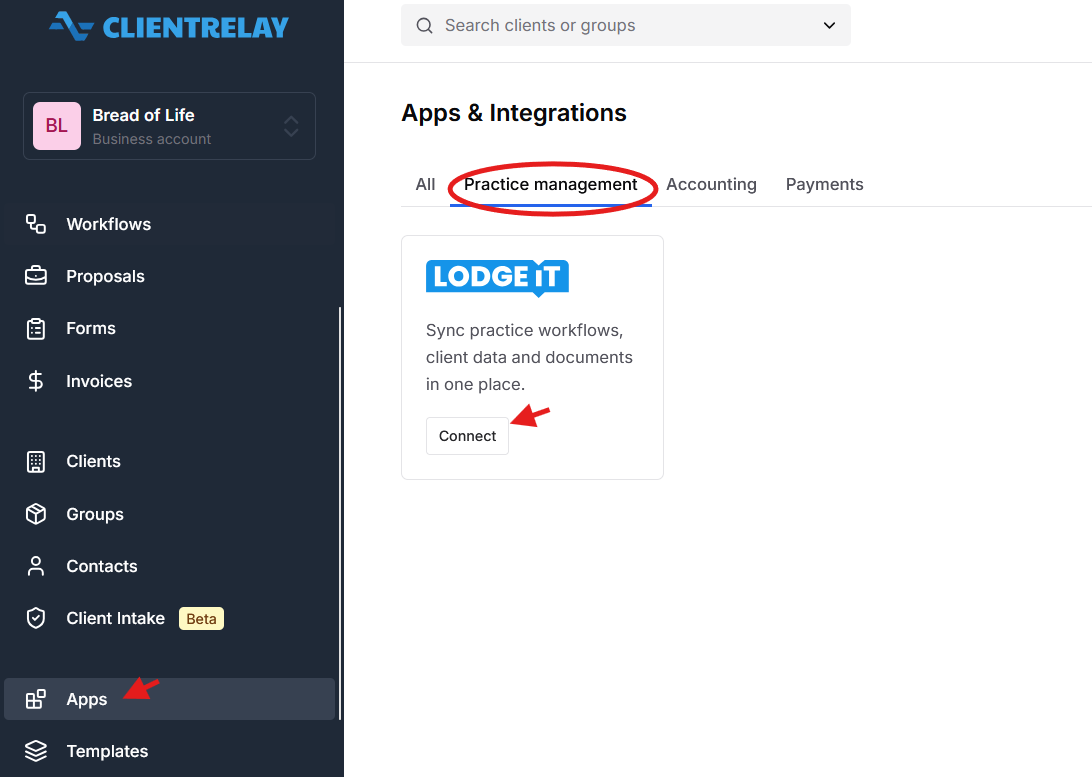
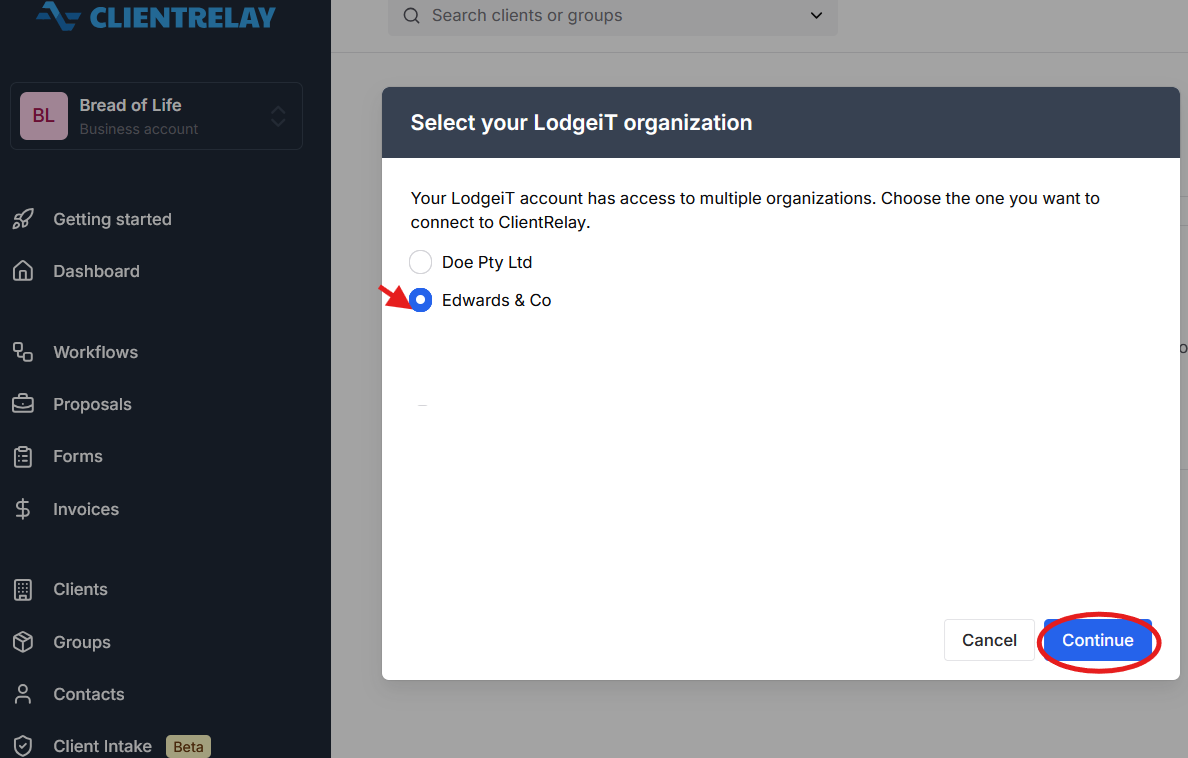
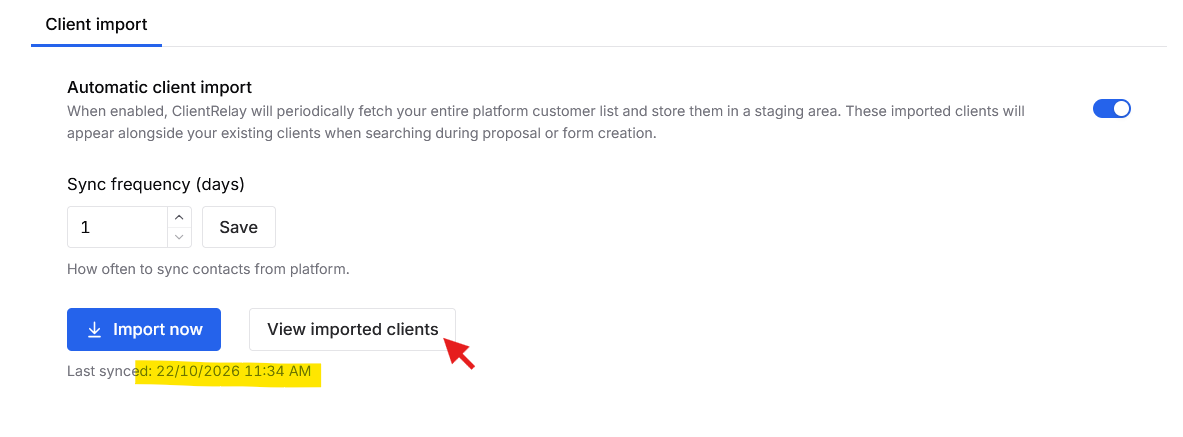
1. Go to the Apps > Practice Management 
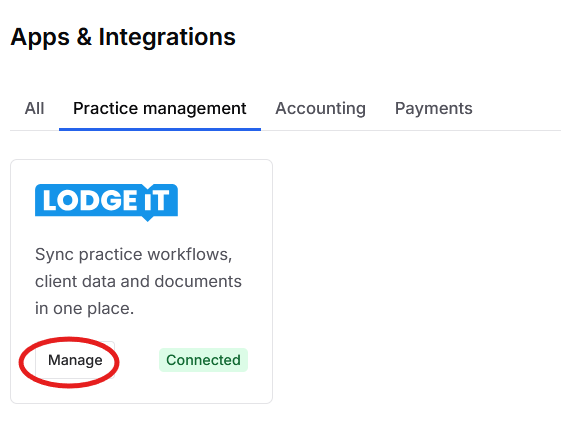
2. Click Import Clients.
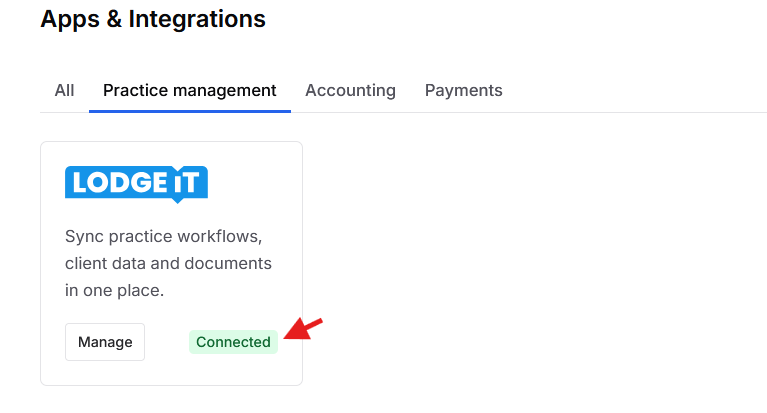
Once completed, your LodgeiT clients and their relationships will be imported and correctly structured in Client Relay.
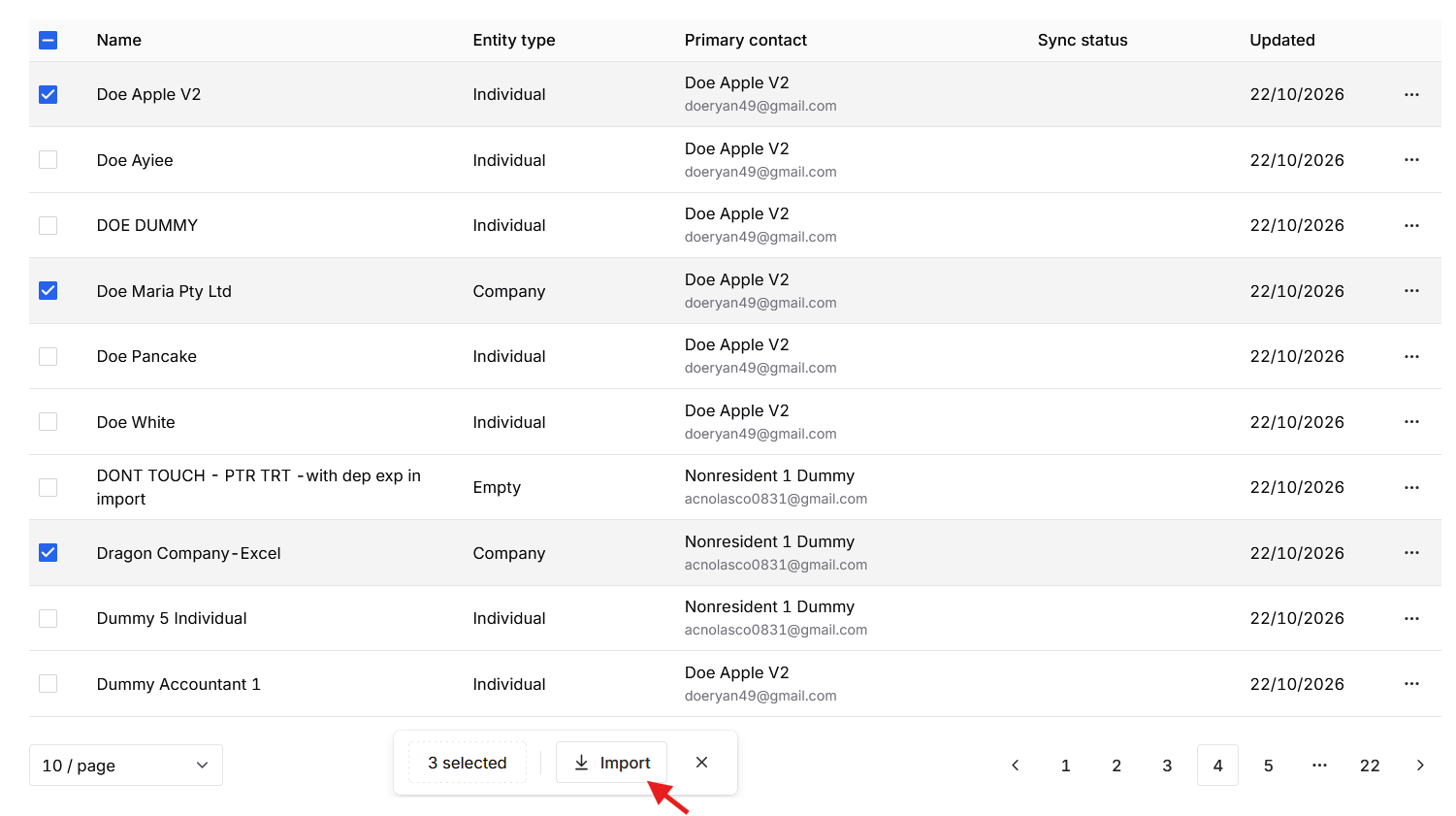
Import Client in Client Relay

Illustration: The user will import only a selected "Client" from the imported client list.

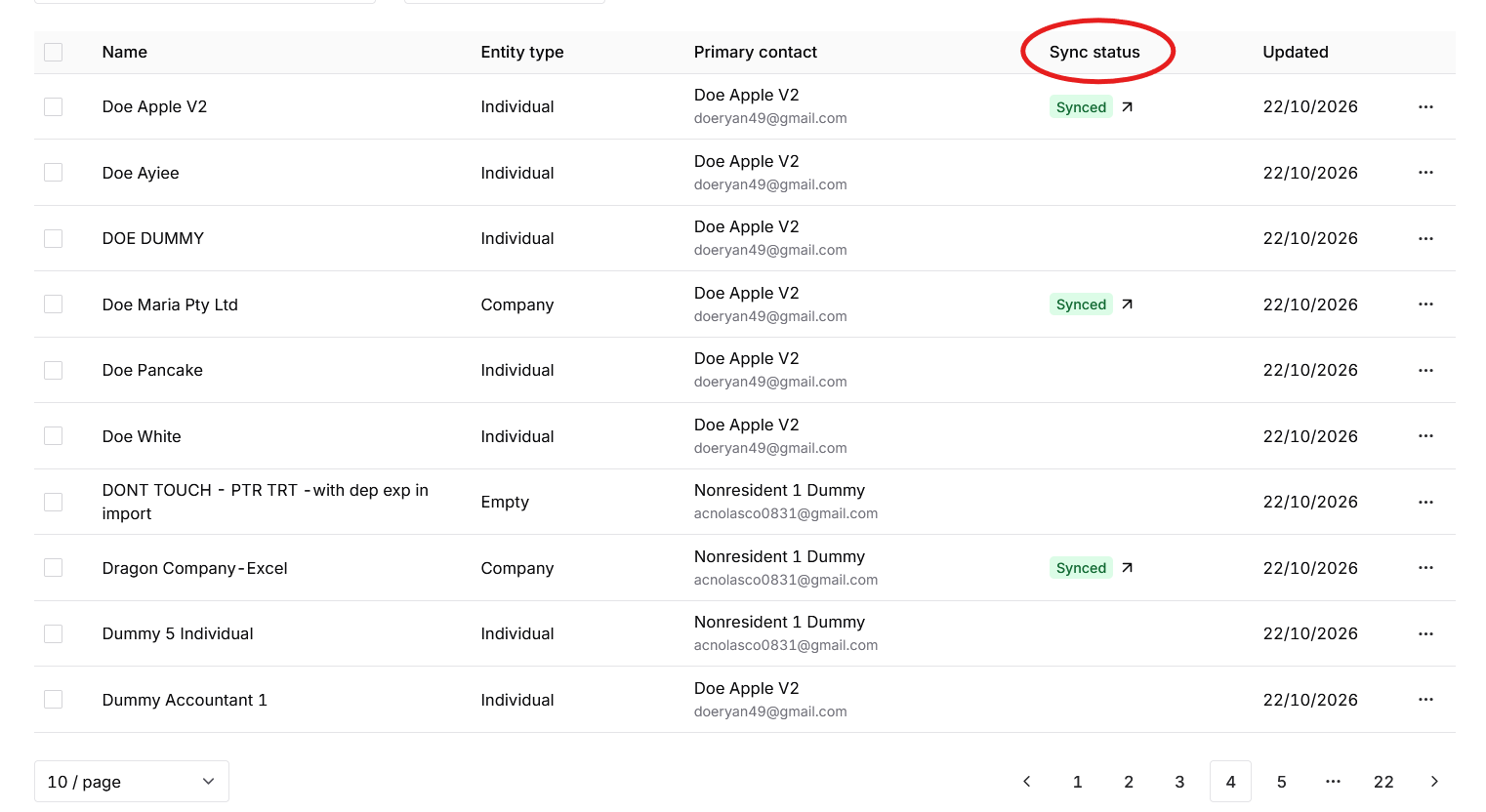
Result:

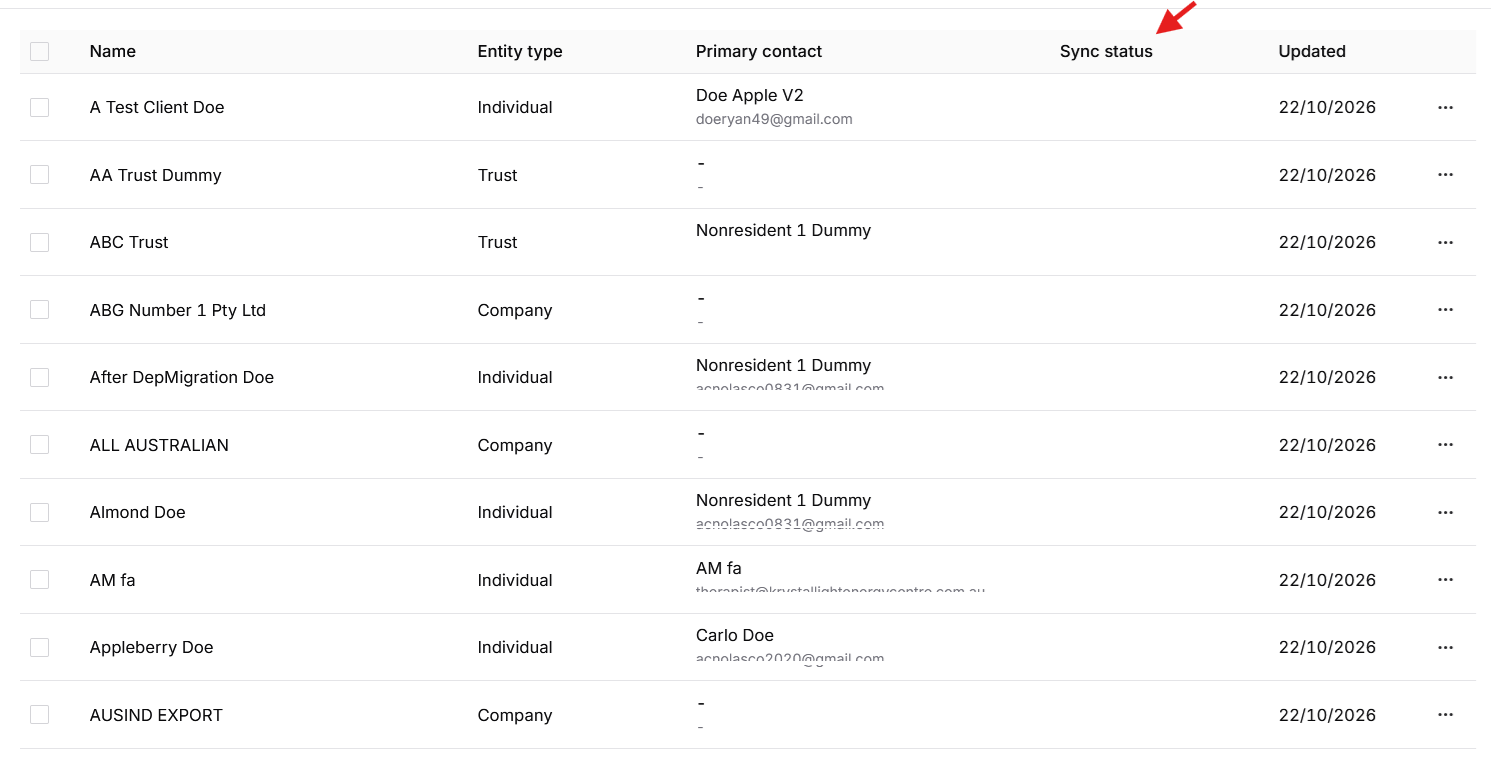
"Sycned" means that data and record are now stored in Client Relay "Clients"

Apple Pty Ltds record is already in Client data base.

Was this article helpful?
That’s Great!
Thank you for your feedback
Sorry! We couldn't be helpful
Thank you for your feedback
Feedback sent
We appreciate your effort and will try to fix the article