TaxAgent Client Profiler allows tax agents to collect relevant client information through customised questions, including yes/no answers, buttons, toggles, checkboxes, and text responses.
Open https://taxagent.lodgeit.net.au/signin and sign in.
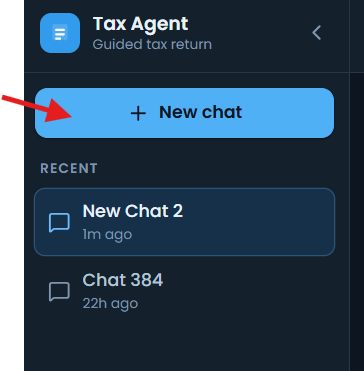
After login, the chat page opens. Select Start a new chat or New chat to begin.
Start a chat, answer each question, and review the information requested for your return.
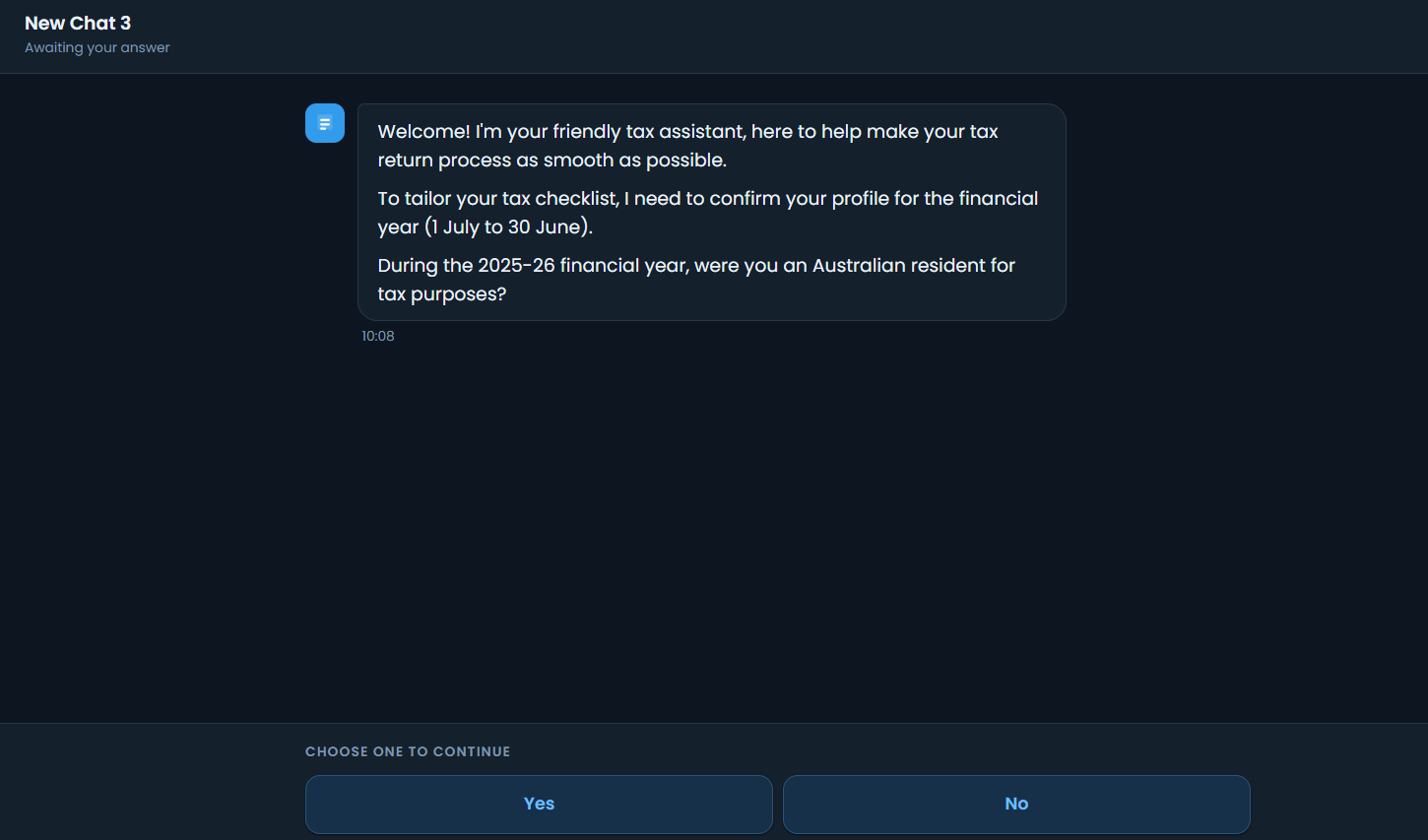
TABLE OF CONTENTS
- 1 Use the Sidebar
- 3 Complete the Profile and Employment Steps
- 4 Complete Income and Deduction Questions
- 5 Finish and Review Your Chat
- 6 Open a TaxAgent Form in ClientRelay
- 7 Configure and Review the Invitation
1 Use the Sidebar
New chat starts a separate guided return conversation. Recent lists existing chats; click a chat to reopen it.
Collapse sidebar hides the navigation. In a narrow window, use the menu icon at the top left to open it again. Dark mode changes the appearance; Sign out ends your session.
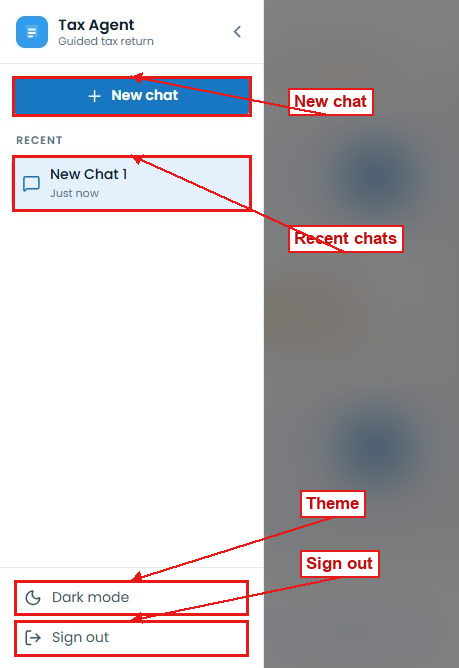
Sidebar controls with the conversation hidden
Answer Each Question
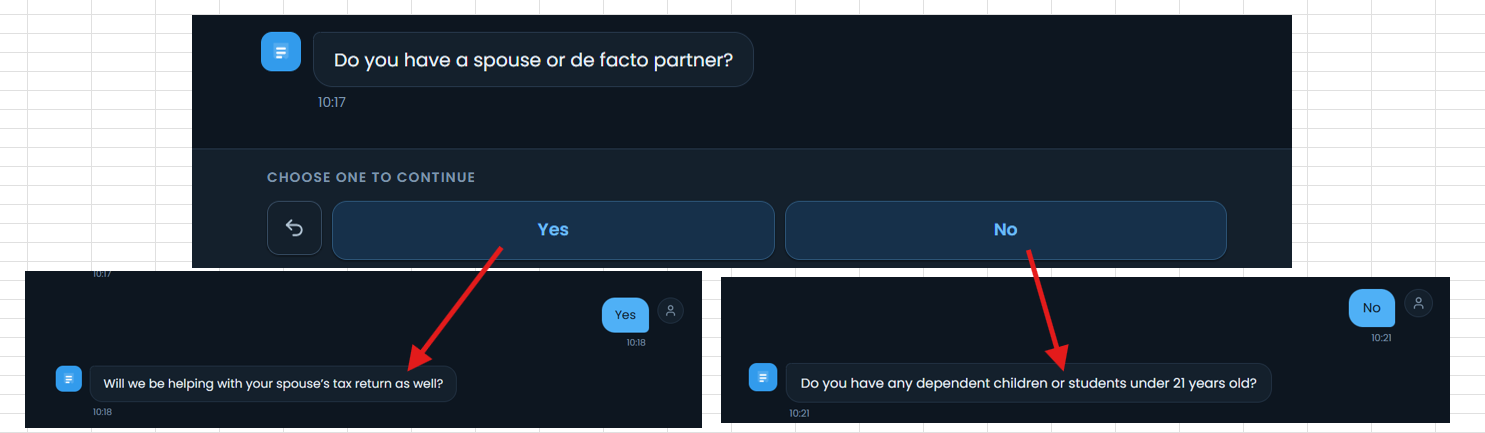
Choose answers that match your own circumstances; later questions will depend on your answers.
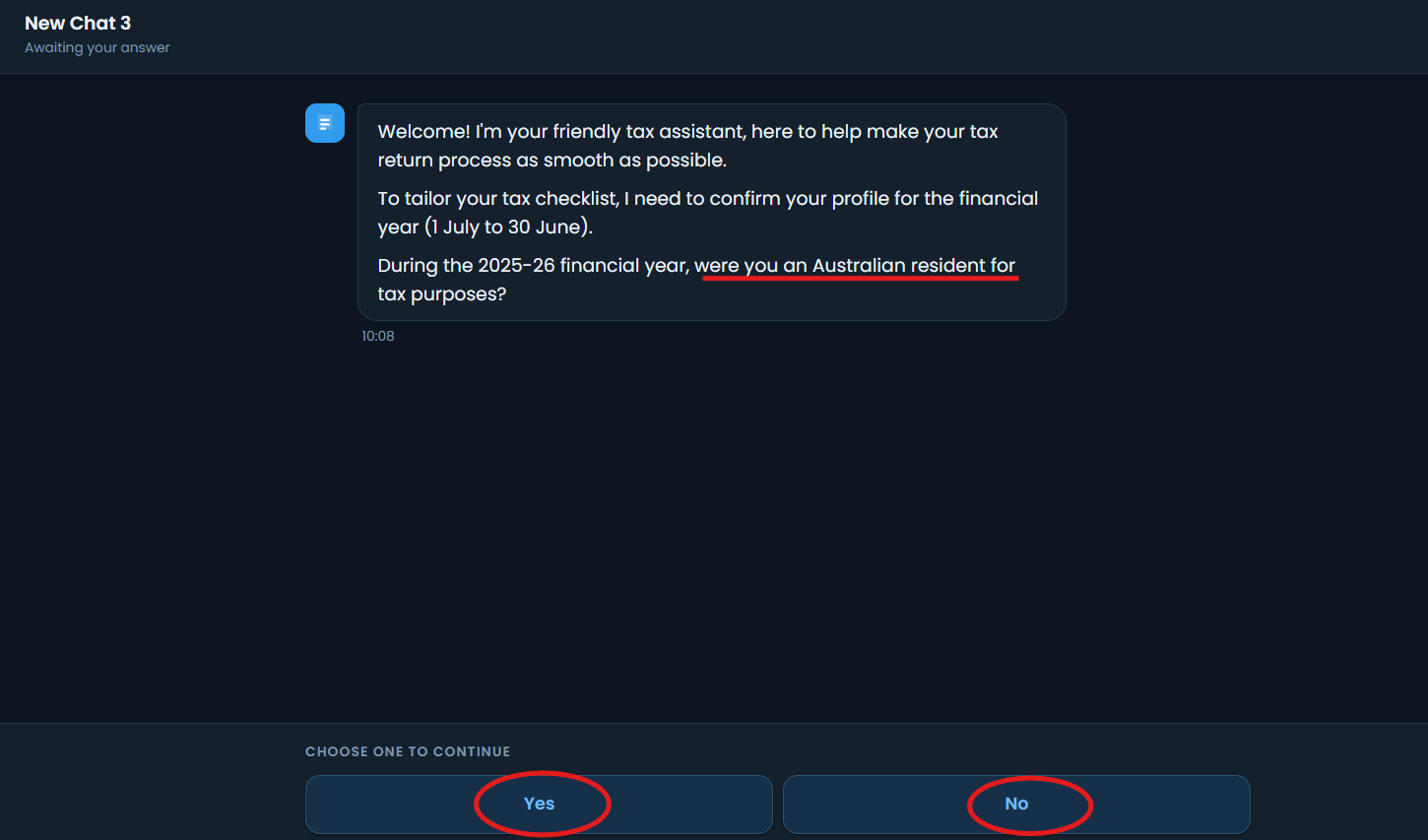
Illustration: below question answerable by "Yes" or "No" , it will ask you different question based on your answer.
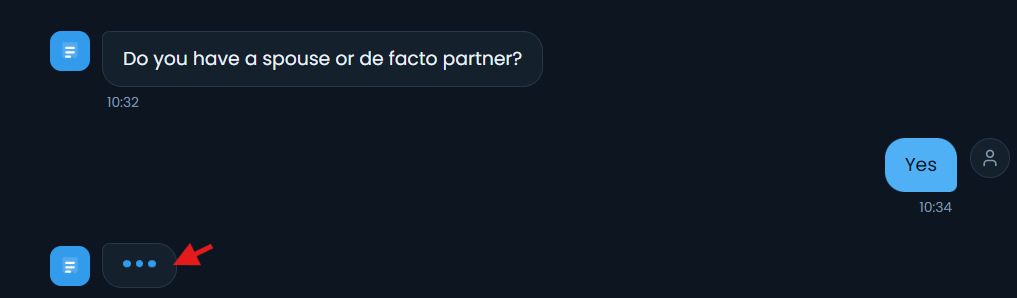
Awaiting your answer means the next input is ready. "Thinking" means TaxAgent is preparing the next question; the answer controls are temporarily disabled.
Back returns to the previous step so you can change an answer. OK continues past an introductory message.

3 Complete the Profile and Employment Steps
Profile: confirm the financial year residency question, date of birth, partner and dependants.
Addresses: enter the residential address. Use Same as residential address for matching postal or business addresses, or type a different address. Business address also offers Not applicable.
EFT details: enter the BSB and account number, then click Confirm. Read the separate bank details authorisation question before choosing Yes or No.
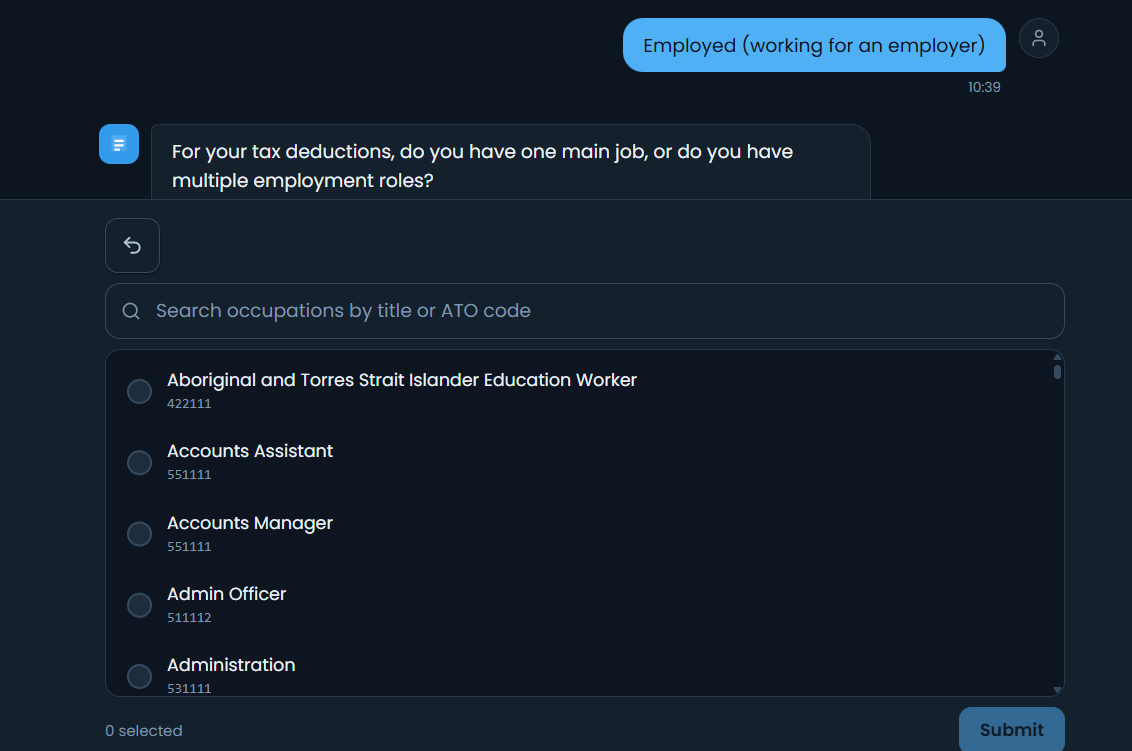
Work situation: choose all applicable statuses, then select the number of jobs. Search for the occupation and confirm it. Enter the employer and start date, then select whether the job is Ongoing or Ended.
Illustrations:
Yes and No answer a single choice question. Other buttons, such as One job, Multiple jobs, Ongoing or Ended, submit the labelled choice.
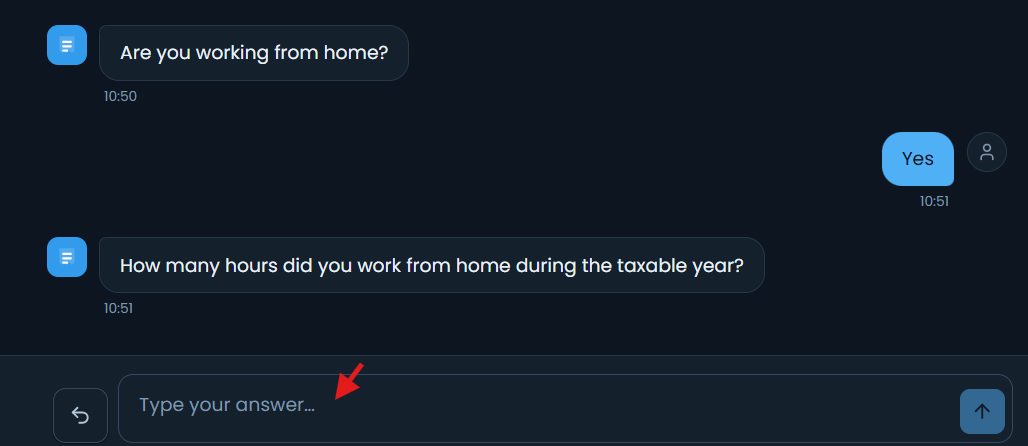
Text field and send arrow: type the requested information, then click the arrow to send it. An empty field keeps the send button disabled.

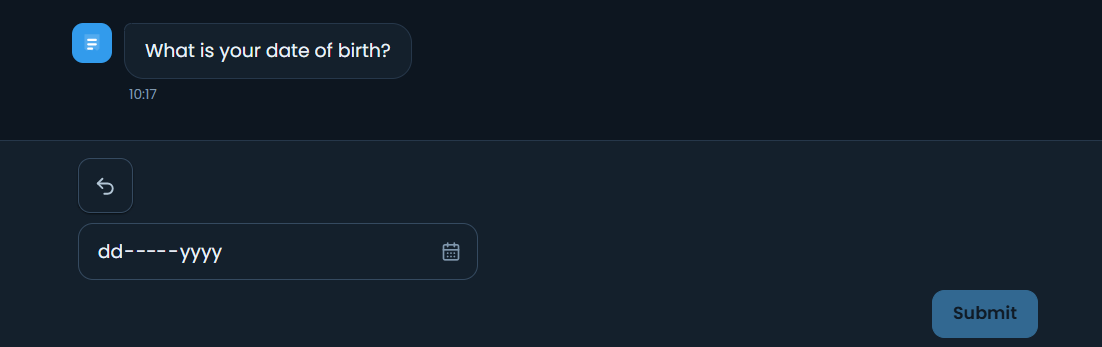
Date field and calendar: enter or select the requested date, then click Submit.
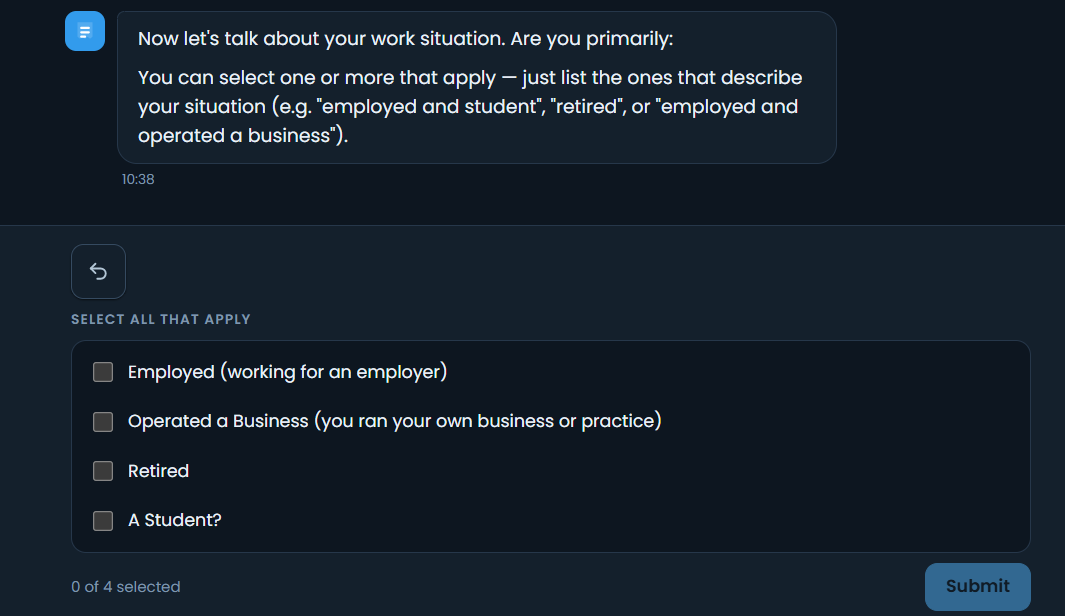
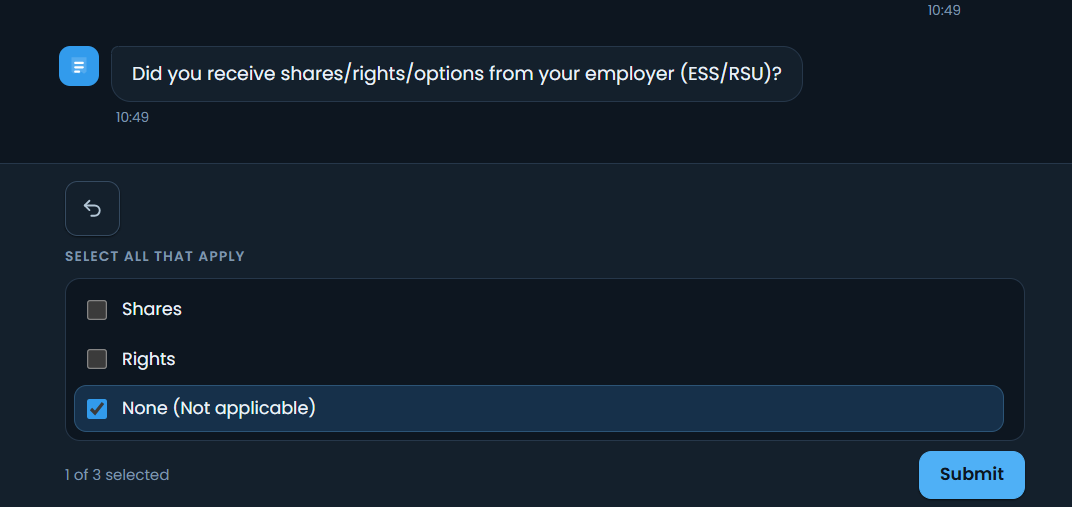
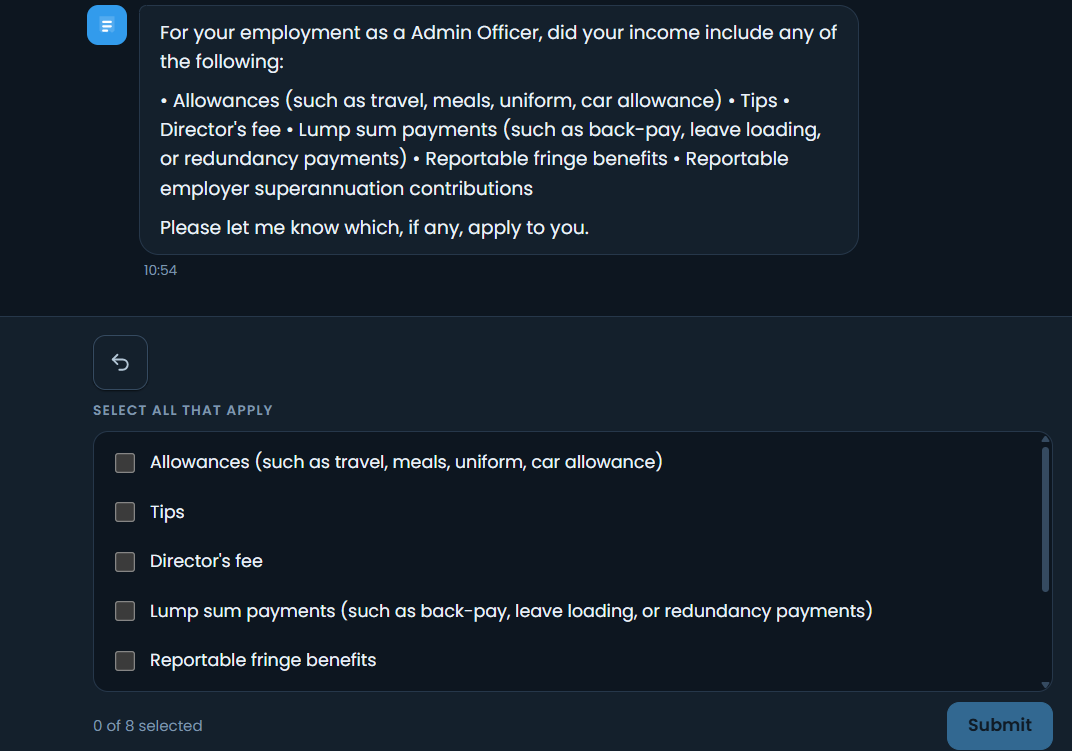
Checkboxes: select every applicable option and click Submit. The selected count shows how many choices are checked. Scroll inside a long option list to see the rest.
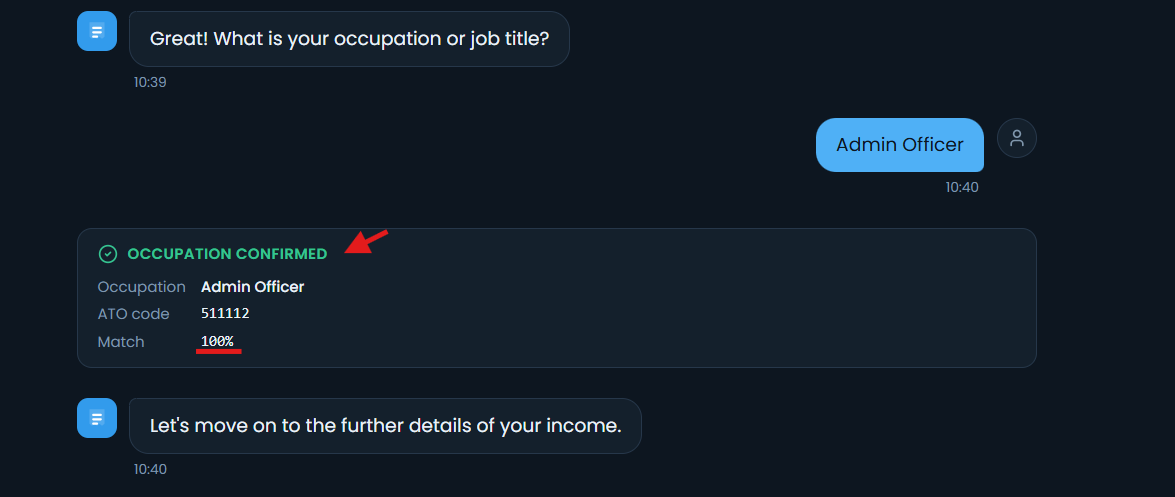
Occupation search: type a job title, select one matching occupation and code, then click Submit. The clear icon removes the search. The chat then shows an Occupation confirmed card.
 If a validation message appears, correct the input and send it again. For work from home hours, the inspected flow required digits only, such as 100.
4 Complete Income and Deduction Questions
Income checklists: select applicable employer shares or rights and employment income items.
Choose None only if no listed item applies.
Work from home: answer the question, enter the requested hours and confirm whether you have a record.
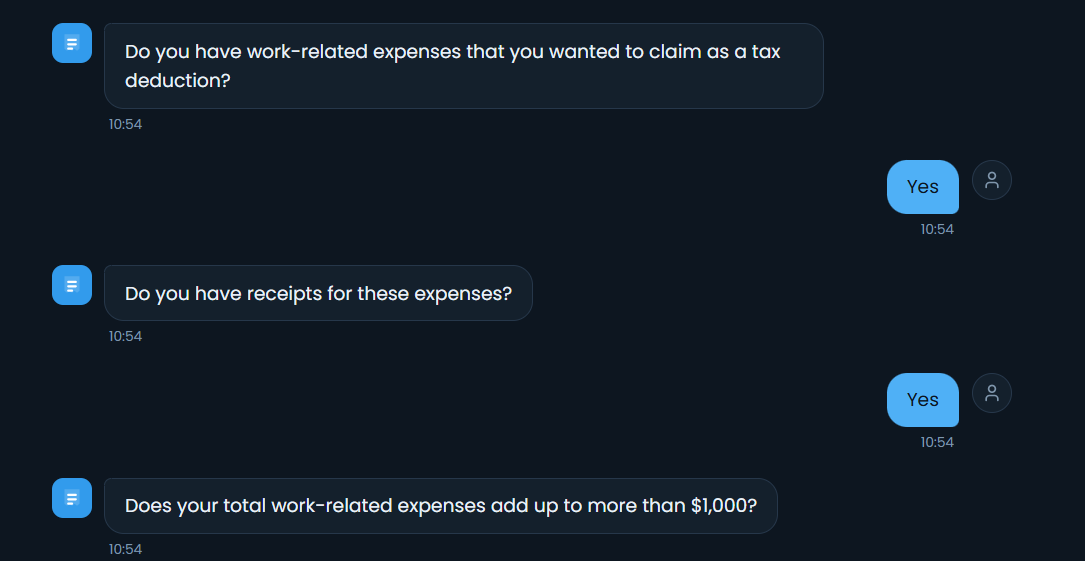
Answer the follow-up questions about work expenses, receipts and the expense total.
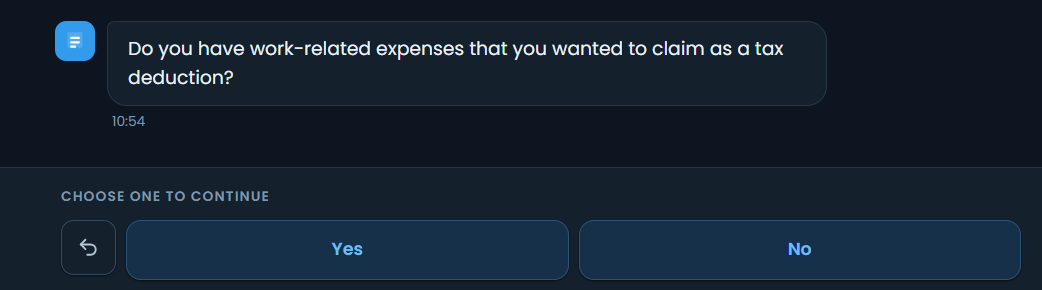
Deductions: Click OK when asked to begin. Read each question and answer with the displayed controls. In the employee example, the categories included transport of bulky equipment, work travel, required clothing, training, phone or internet, office supplies, professional memberships and other deductions.
Enter information that matches your own return, can include allowances, tips, director fees, lump sums, fringe benefits, employer super contributions and Other.
5 Finish and Review Your Chat
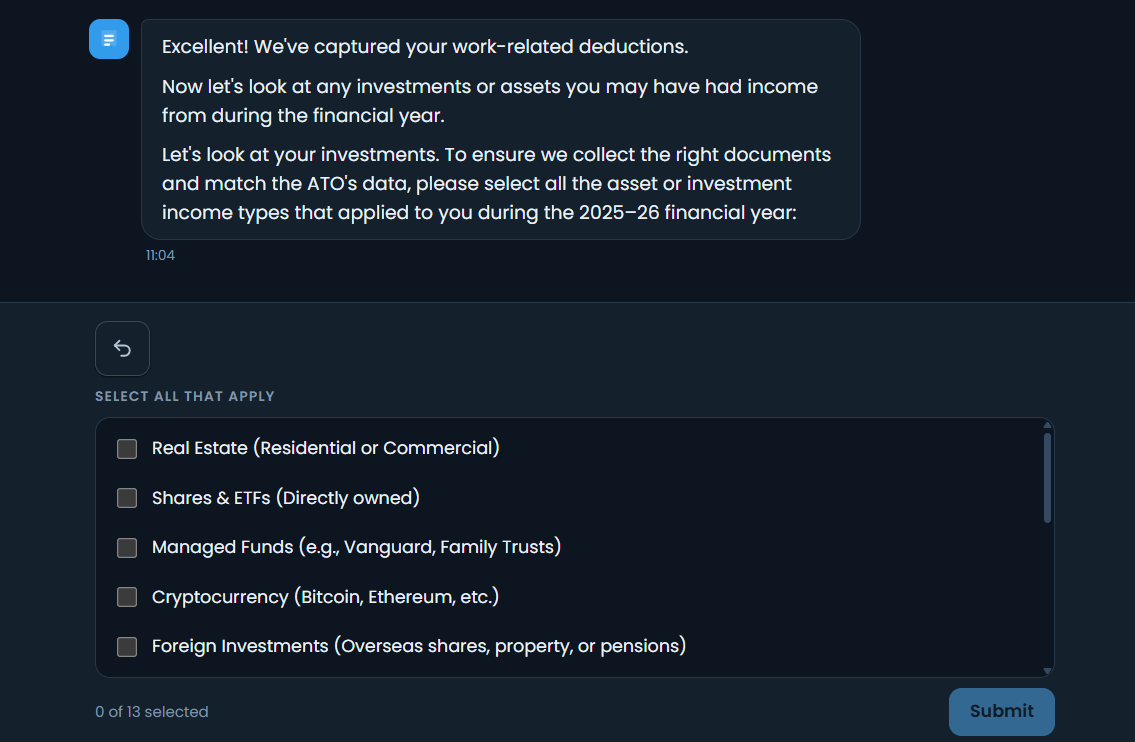
Investments: select every asset or investment income type that applies, or choose None if there is no investment income. Follow the questions shown for your selections.
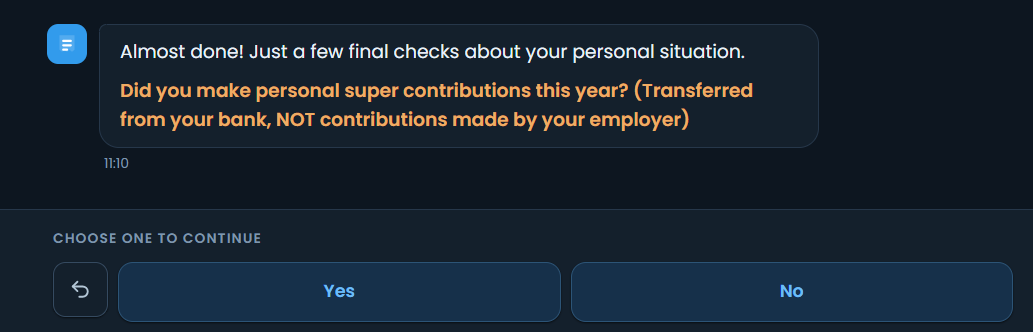
Final checks: answer the personal super contribution and private health insurance questions, then enter the town or city requested.
Completion summary: the chat summarises the information collected and confirms that it has been saved.
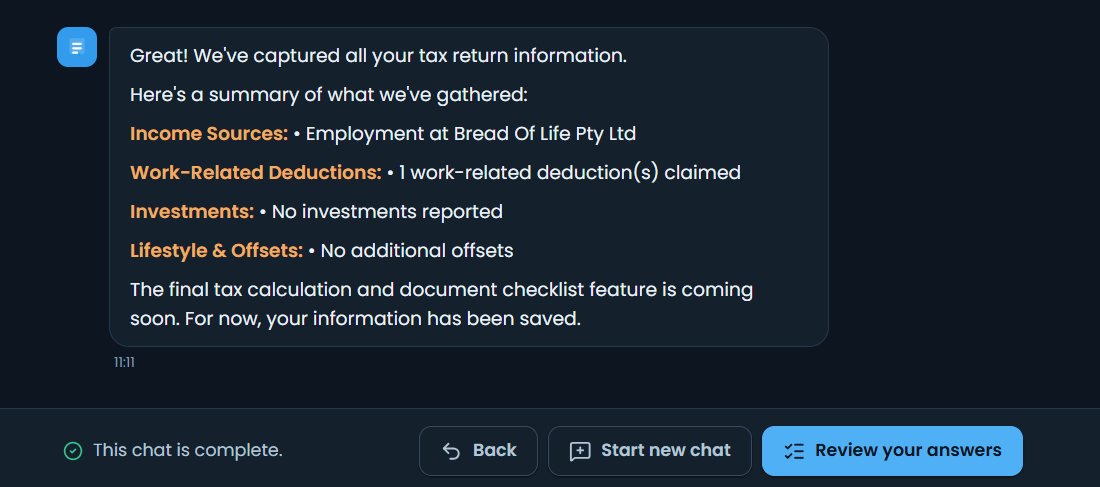
Note:

Back revisits the previous step.
Start new chat opens another conversation.
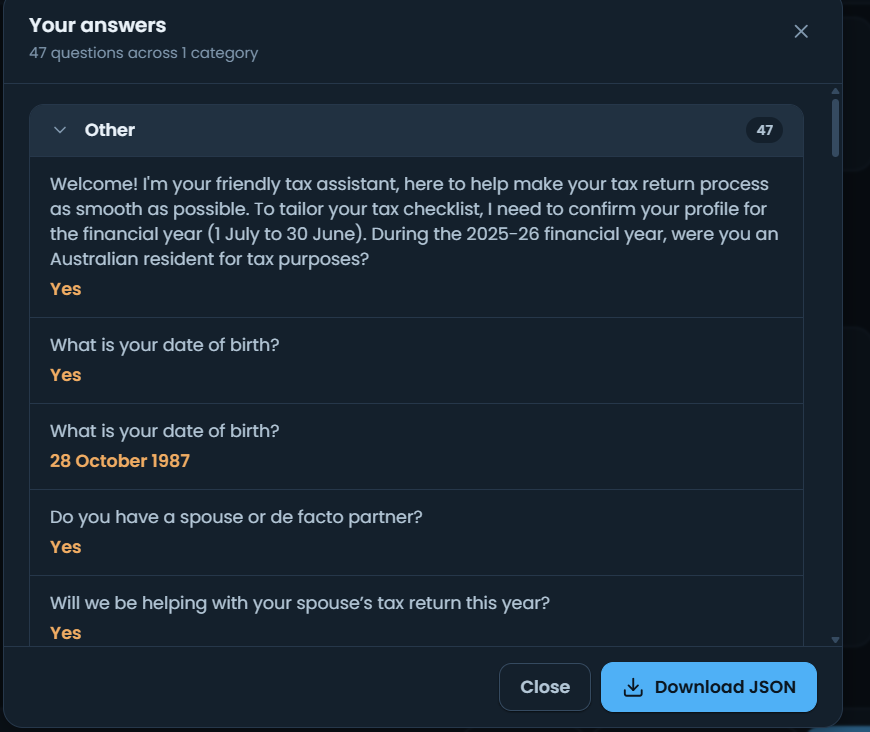
Review your answers opens a question and answer list. Expand or collapse the category, use Download JSON to export the answers, or Close to return to the chat.
6 Open a TaxAgent Form in ClientRelay
Sign in at https://login.clientrelay.lodgeit.net.au/.
Open the side menu and select Clients. Search for and open the required client record.
Select the client record’s Forms tab, then click New form. The Forms page lists existing forms, their status and recipient contact; the TaxAgent label identifies a TaxAgent form.
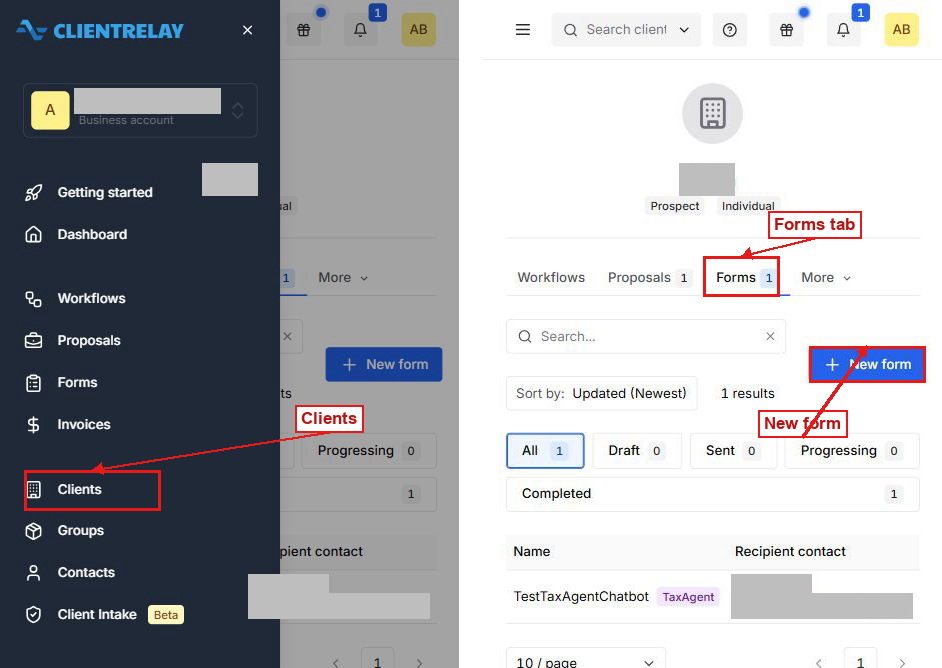
ClientRelay Clients menu and the client Forms tab
7 Configure and Review the Invitation
Basic: enter a Form title, confirm the Client and Recipient contact, and tick Use TaxAgent to ask tax questions with AI. The option is labelled Beta. Enabling it removes the standard Form template field.
Continue moves to the Email step and creates the form draft. Save draft keeps the form for later.
Email: select an optional email template, then enter the Email subject and Email content. The editor buttons format the message, add links and lists, or insert template variables.
Go back returns to Basic. Preview opens a preview tab. Save draft saves the current setup. Send form sends the invitation to the selected recipient; review the recipient and message before sending.
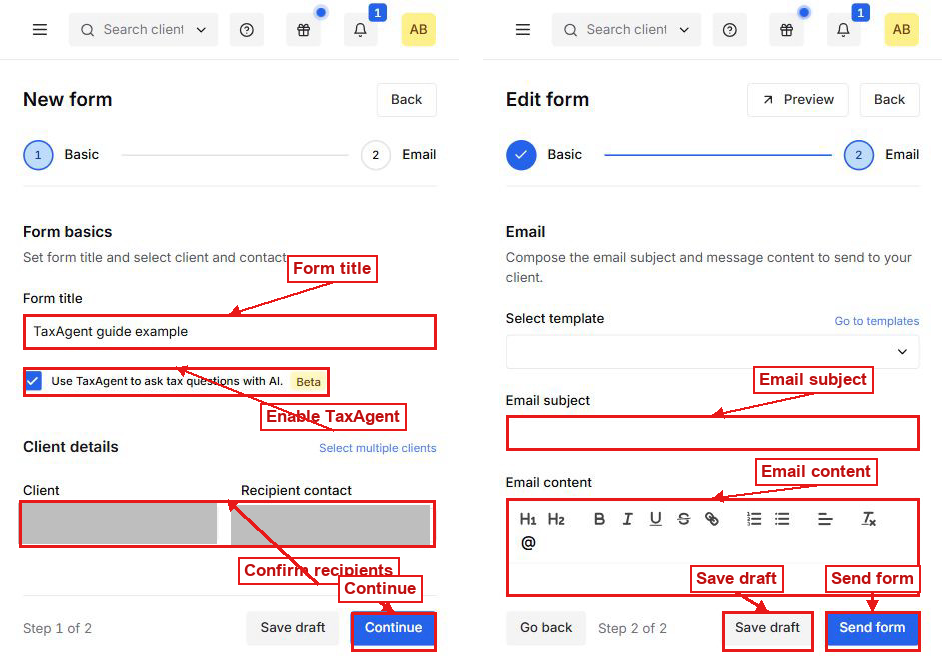
TaxAgent form option and invitation email controls
Was this article helpful?
That’s Great!
Thank you for your feedback
Sorry! We couldn't be helpful
Thank you for your feedback
Feedback sent
We appreciate your effort and will try to fix the article