The Audit Logs feature in ClientRelay allows you to review a record of activities performed within your account. It helps you monitor important actions, such as creating clients and contacts, uploading documents, archiving contacts, and completing client intake tasks.
Audit Logs provide visibility into recorded activities, including when an action occurred, who performed it, and which client, contact, or document was involved.
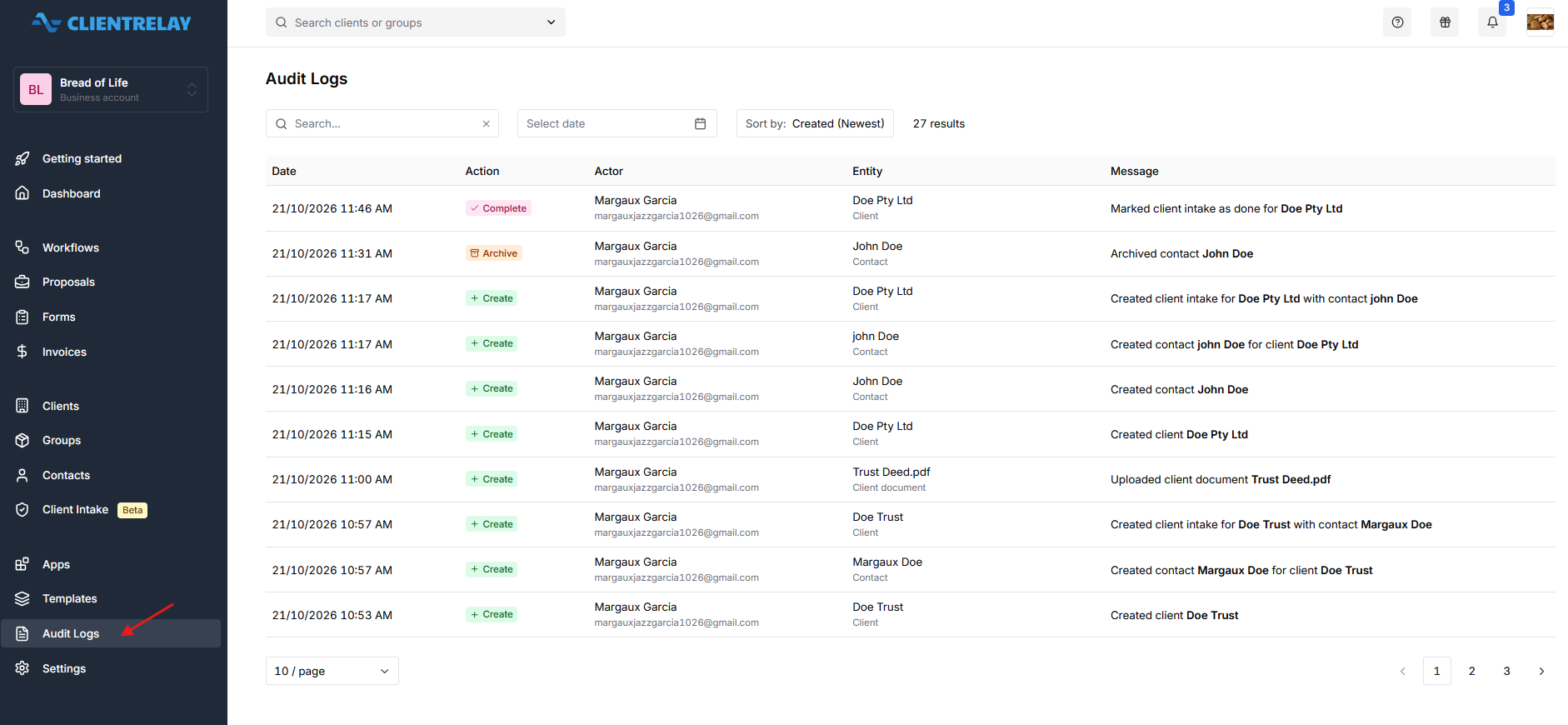
How to Access Audit Logs
Log in to your ClientRelay account.
Navigate to Audit Logs from the left-hand menu.
Review the list of recorded activities displayed on the page.
Understanding the Audit Logs Page
The Audit Logs page displays the following information:
Date – Shows the date and time when the activity occurred.
Action – Indicates the type of action performed, such as Create, Archive, or Complete.
Actor – Identifies the user who performed the action, including their name and email address.
Entity – Displays the name of the item involved in the activity, such as a client, contact, or client document. The entity type is shown below its name.
Message – Provides a description of the activity performed.
How to Search and Filter Audit Logs
You can use the available controls to find specific activity records.
1. Search for an Activity
Locate the Search field at the top of the Audit Logs page.
Enter a relevant keyword, such as a client name, contact name, document name, or activity description.
Review the matching records displayed.
2. Filter by Date
Click the Select date field.
Choose the relevant date using the calendar.
Review the records matching the selected date.
3. Sort Audit Logs
Click the Sort by dropdown.
Select your preferred sorting option, such as Created (Newest).
Review the records in the selected order.
How to Navigate Audit Log Records
Audit Logs are displayed in a table, with a default setting of 10 records per page.
Use the records-per-page dropdown to adjust how many entries are displayed at a time, where available.
Use the page numbers or navigation arrows at the bottom of the table to view additional records.
Check the total number of results displayed above the table to see how many records match your current search or filters.
Was this article helpful?
That’s Great!
Thank you for your feedback
Sorry! We couldn't be helpful
Thank you for your feedback
Feedback sent
We appreciate your effort and will try to fix the article